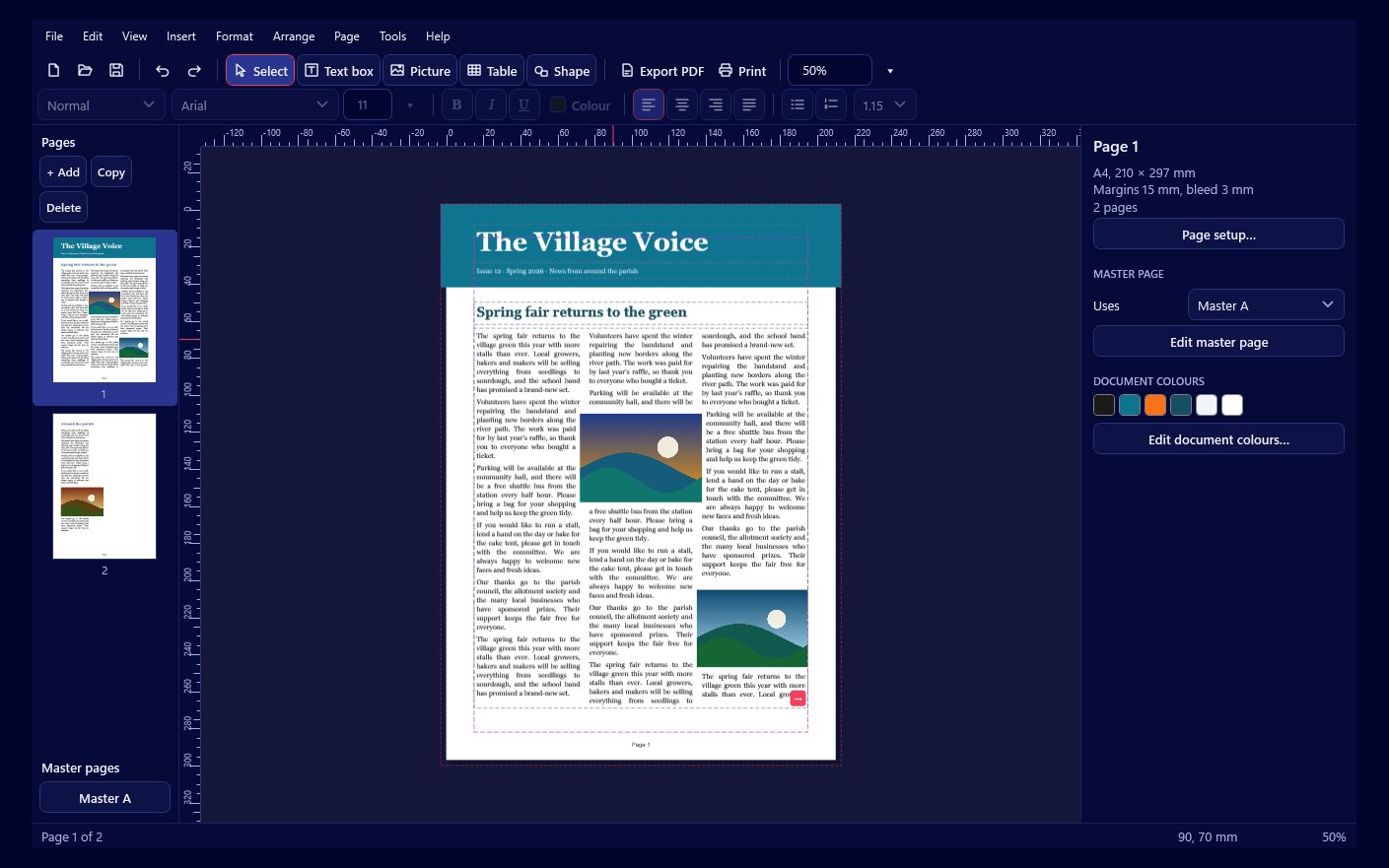
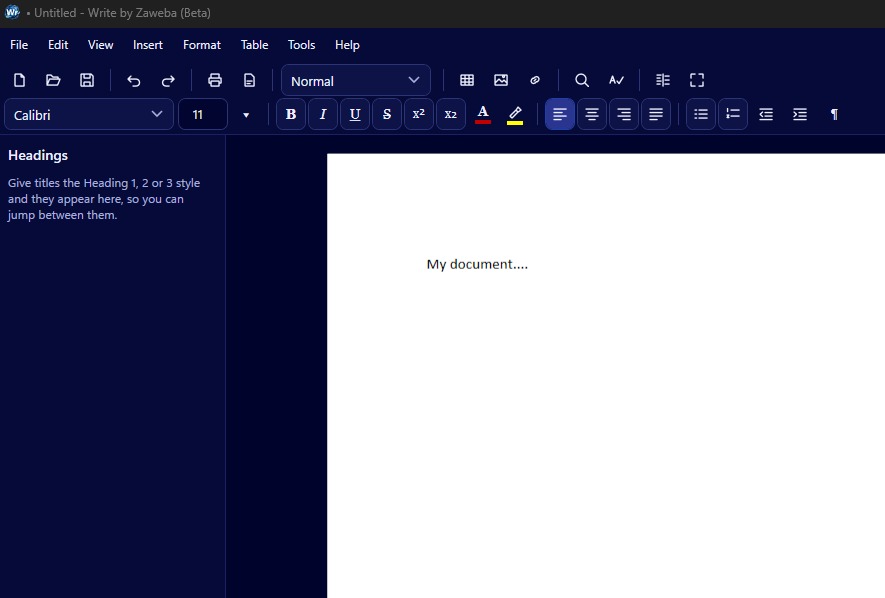
Check every page of an old .pub file before you convert it
Pub Converter by Zaweba previews each .pub file page by page with Publish's own renderer, so what you see is exactly what you will get.
The first time I opened a folder of old newsletters in Pub Converter by Zaweba, I didn't convert anything for a good ten minutes. I just clicked through them. A parish magazine from years back, a menu for a birthday do, a flyer for a car boot sale that I had completely forgotten about. Being able to see them again, page by page, was half the point.
That preview is the part of the app I'd tell a new user about first, because it changes how you work. You aren't converting blind and then opening a pile of PDFs to find out what happened. You look first, and only then save.
The preview is the result
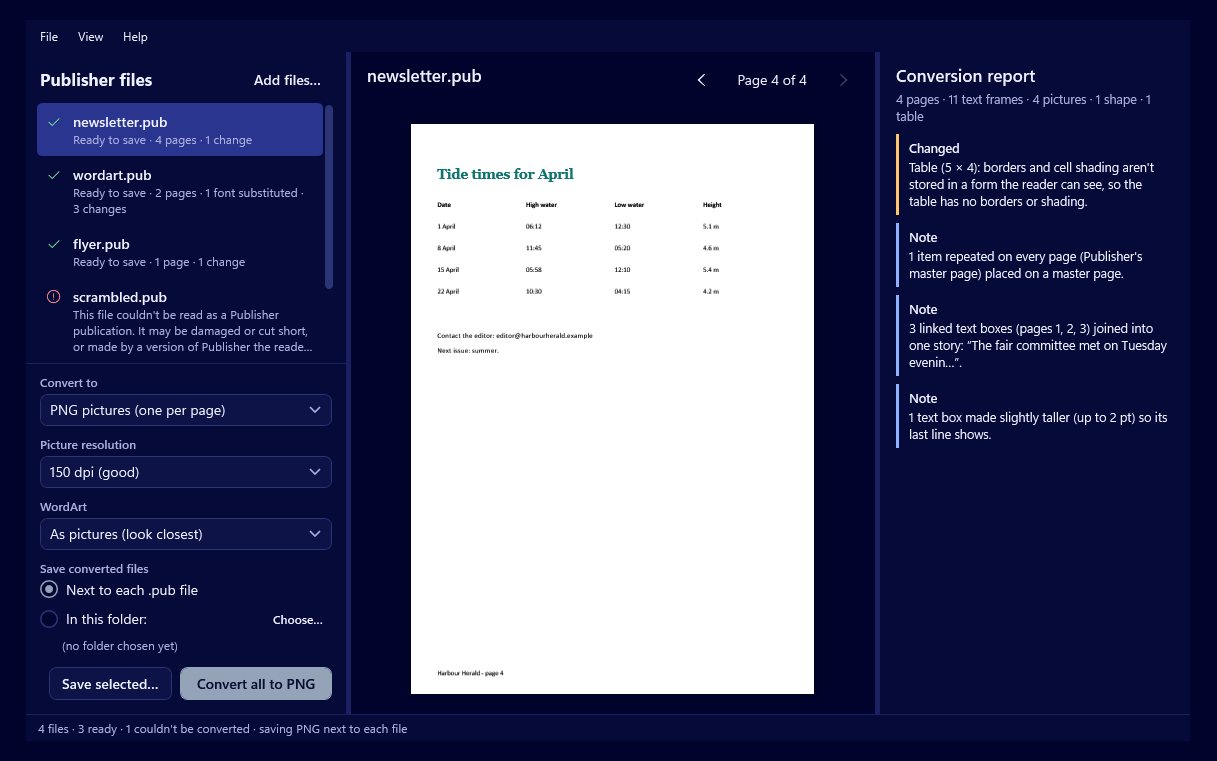
Plenty of converters show you a rough thumbnail and then produce something a bit different. Pub Converter doesn't work that way. Each file is previewed with the same renderer that Publish by Zaweba uses, so the page in the middle of the window is the page you will get out the other end. If the masthead sits slightly too low in the preview, it will sit slightly too low in the PDF as well. If it looks right, it is right.
That sounds like a small thing until you have a hundred files to deal with. Knowing that the preview is honest means you can trust a quick glance, rather than checking every output file afterwards.
Page by page, not just the cover
A four page newsletter gets four pages in the preview, not just the front. That matters, because the trouble in an old publication is rarely on page one. It's the back page with the table of fixture dates, or the inside spread where someone used a fancy WordArt heading. You step through the pages and see each one as it will be saved.
How I use it in practice
My routine is simple. I add a file or a whole folder, click the first one in the list and look through its pages. Beside the preview sits the conversion report for that file, so while I'm looking at the page I can also read which fonts were swapped and whether anything couldn't be kept exactly. The two together tell me almost everything I need.
If a file looks fine, I move on to the next. If something looks off, I read the report to see why. Very often the answer is plain: a font I don't have on this PC has been replaced with the nearest one installed, or a table's borders didn't come across. Then I decide what kind of output suits that file best.
That decision is the real benefit. A flyer that only needs to be printed again can go out as a PDF. A newsletter template the club still uses every month is better saved as an editable Publish by Zaweba file, so it can be changed. And something I just want to drop into an email or a website can be saved as a PNG picture of each page, at 72, 150 or 300 dpi.
Nothing else to install
You might expect to need the original publishing program to see these files at all. You don't. The .pub reader is built into the app (it's the open source libmspub), so the preview works on a PC that has never had any publishing software on it. It all happens offline, on your own machine, with no account.
There are limits, and the preview helps you spot them early. Files saved in the 2000 format and earlier keep their text, pictures and positions but not their tables, and the report says so. Very old files from 1995 and earlier can't be read at all. Some things are drawn differently, such as WordArt arches and waves, which come out flat, or gradients, where the first colour is used. Seeing that on screen before you convert is far better than discovering it in a printout.
When the preview looks right, Convert all saves every file in the list in one go. I like that the slow, careful part (looking) and the quick part (saving) are kept separate. You spend your attention where it's needed, and leave the rest to the app.
If you have a drawer full of .pub files you can't currently open, start with the preview. Have a look through them first. You may find, as I did, that a few are worth more care than you expected.